How to Add Store?
1️⃣ Choose a Plan
Watch video below
Select a plan that suits you.
New sellers can start with the Free Plan (no payment required).
2️⃣ Add Your Store
Tap Add Store button at the top on the home screen, or
At the bottom of the screen, click More → Stores → Add Store.
Watch video or continue reading below
Step1: *BASIC

- Enter store/branch name/business name as it is on your license.
- Enter email which will receive notifications for this specific store
- Enter your store/branch phone number
- Toggle to Allow customer pick up if you would like customers to pick their orders from your store physical location
Step2: *LOCATION
Tap Auto Fetch if you're at the exact location of your store. This will automatically fill in your store's address details.
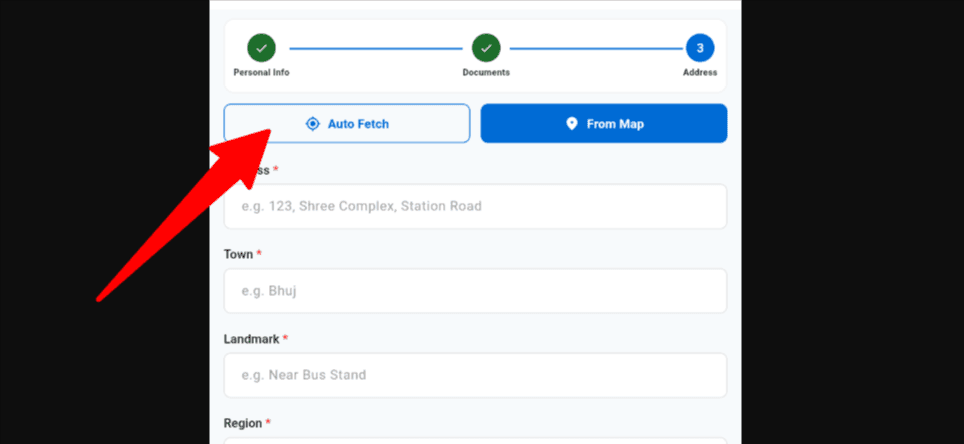
Select from Map if you want to choose your store location manually by placing a pin on the map.

How to select location from Map

- Type in your store location, building name
- Tap Done or click enter to auto search location
- Tap on Confirm location
Step3: *IDENTITY
✅ Upload your Store Logo (A square logo is recommended for the best display.)

➖ Upload your Store Banner (A landscape banner is recommended for the best appearance.)
Step4: *DOCUMENTS

Address Proof : This can be a photo of your physical store with a poster showing your business name and location. Any government document showing your registered business name and location, rent receipt, electricity bill etc
Statement: upload a bank statement or mobile money statement for the account you want us to send your money after a successful order delivery.
Tax Name: eg VAT
TIN or NIN: Enter your Tin number or enter your national ID number
Step5: Bank
This is the account we will use to send your payment after a successful withdrawal request.

Enter your bank account or Mobile Money details so we can send your payouts after your orders are successfully delivered.
Don't have a Business License?
If you have a National ID and a physical store location, tap Talk to Live Person. Our support team will be happy to guide you through the next steps so you can continue with your seller registration.